Today, I have to update a AutoCAD block counting program of mine. As part of the update, I am moving the C# code to Visual Studio 2010. Sadly, I occasionally print code as a reference and for some reason, it always prints in black.
A quick Google search revealed that VS 2010 does NOT print in color by default. You need to install an extension to print in color.
The question is WHY!?!
Anyway, here is the link to downloading the extension: http://www.codequake.com/post/How-to-print-in-color-with-Visual-Studio-2010-Lets-install-Color-Printing-extension.aspx
Aujourd'hui, je dois mettre à jour un petit program qui compte des blocs dans un dessin AutoCAD. avant de mettre à jour le code C#, je vais migrer le projet vers Visual Studio 2010. Malheureusement, de temps en temps j'imprime du code comme référence et pour une raison quelconque, le code s'imprime toujours en noir.
Google me dit que VS 2010 imprime toujours en noir. Pour imprimer ne couleur, il faut installer un extension.
Je me pose la question suivante: POURQUOI!?!
Voici le lien pour comment installer l'extension: http://www.codequake.com/post/How-to-print-in-color-with-Visual-Studio-2010-Lets-install-Color-Printing-extension.aspx
Showing posts with label Visual Studio. Show all posts
Showing posts with label Visual Studio. Show all posts
Monday, June 03, 2013


Tuesday, March 27, 2012
Line numbers in Visual Studio project - Part 2
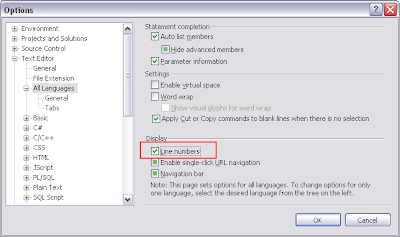
Well, after working with Visual Studio 2008 on a few projects, I have realized that I did not have the line numbers showing up on the left side of the editor. To make them appear, go to Tools > Options > Text Editor > All Languages and make sure that the Line Numbers option is checked.

Monday, January 09, 2012
Line numbers in Visual Studio project
Hello again,
Well, it's a new year and it's back to work time. Today's post is a small one. I needed to know the current line number in a C# AutoCAD Plug-In project. In Visual Studio, to activate the status bar, go to Tools -> Options -> Environment -> General and check the Show Status Bar option (as shown):
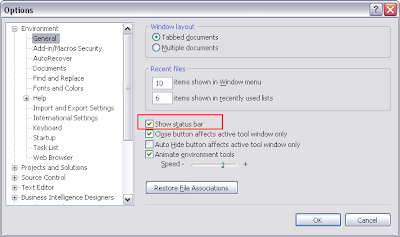
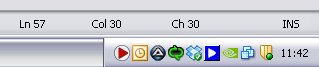
Now the line and column position of the cursor is shown. Pretty handy when looking for errors and warnings!
Well, it's a new year and it's back to work time. Today's post is a small one. I needed to know the current line number in a C# AutoCAD Plug-In project. In Visual Studio, to activate the status bar, go to Tools -> Options -> Environment -> General and check the Show Status Bar option (as shown):

Now the line and column position of the cursor is shown. Pretty handy when looking for errors and warnings!

Subscribe to:
Posts (Atom)
